PHOTOGRAPHY TECH
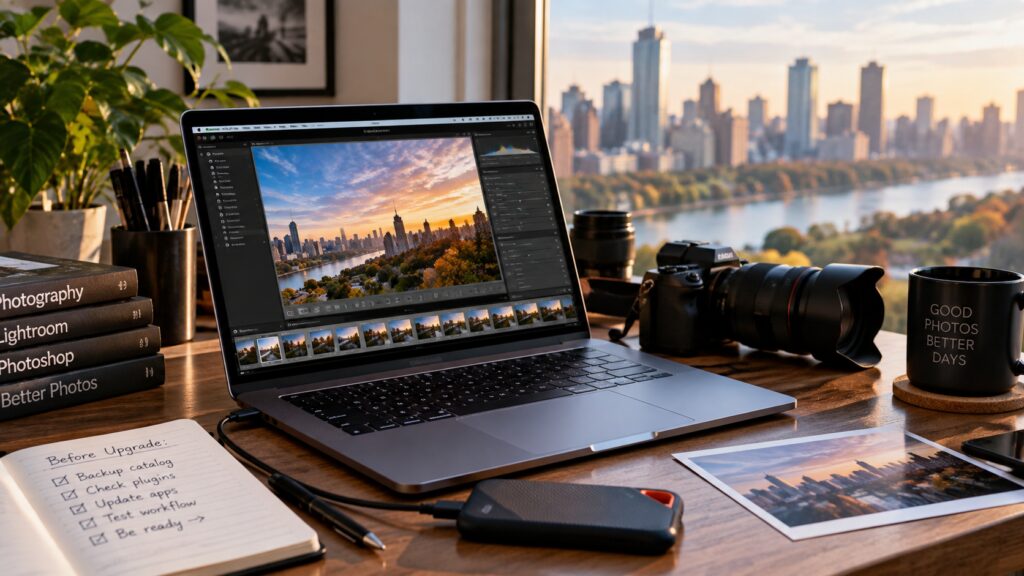
If Lightroom is part of your photography workflow, do not let the red Update Now badge decide when you upgrade your Mac.
macOS 27 Golden Gate is here. Apple says the release is for Macs with Apple silicon, which means Intel Macs are no longer on the macOS 27 compatibility list. For photographers, though, the Mac itself is only one part of the decision. Lightroom Classic, Photoshop, tethering software, calibration tools, scanners, printers, backup software and older plugins can all be part of the same workflow.
Back up your Lightroom catalog and photographs, update the software you depend on, check every important plugin or hardware utility, and only then decide whether to install macOS 27.
First: check which Mac you have
Open Apple menu → About This Mac. Apple says macOS 27 is compatible with Macs that use Apple silicon. If your Mac is Intel-based, macOS 27 is not the upgrade path for that machine.
Eligible for macOS 27. Check the rest of your photography workflow before updating.
Stay on the newest macOS and security updates your Mac supports, and start planning your next hardware move.
Official Apple compatibility: macOS 27 compatibility list
The Lightroom mistake people make before an OS upgrade
Backing up your photographs is not the same thing as backing up your Lightroom Classic catalog. Your image files contain the originals. The Lightroom catalog contains much of the organizational and editing work that makes the library useful: edits, ratings, collections, keywords and more.
Before you upgrade
- Back up the Lightroom Classic catalog.
- Back up the actual photo library.
- Make sure at least one backup is not only on the Mac internal drive.
- Open the backup and verify that it is really there.
Check the whole photography workflow — not just Lightroom
The application that gets the attention is often not the piece that causes trouble. A photo workflow can depend on printer drivers, scanner software, camera tethering utilities, monitor-calibration tools, Wacom software, backup clients and years-old plugins.
| Check | Why it matters |
|---|---|
| Lightroom / Photoshop | Confirm you are on a current version and review Adobe compatibility information. |
| Plugins | Older plugins may lag behind a new macOS release. |
| Printer / scanner | Drivers and utilities are often updated later than the major apps. |
| Tethering | Camera utilities can be essential during paid shoots. |
| Calibration | Display and profiling software should be checked before changing the OS. |
| Backup software | An upgrade is the wrong time to discover your backup tool is not working. |
Adobe compatibility information: Adobe apps on Apple silicon
Rosetta is now on a deadline
This matters if you still depend on old Intel-only Mac utilities. Apple says macOS 27 is the final release with general-purpose Rosetta support for Intel apps on Apple silicon. That makes this a good time to inventory old software instead of finding out later that a critical utility was never updated.
Open your Applications folder, select an important app, and choose File → Get Info. Pay attention to older tools and plugins that are still Intel-only.
Apple developer notice: Upcoming changes to Rosetta support
My upgrade checklist for photographers
- Finish urgent work first. Do not perform a major OS upgrade immediately before a deadline or shoot.
- Back up the Lightroom catalog. Keep a copy somewhere other than the internal drive.
- Back up the photographs. Verify the copy instead of assuming it completed.
- Update Adobe apps. Then review Adobe’s current compatibility guidance.
- Inventory plugins and utilities. Include scanners, printers, calibration, tethering and backup software.
- Check old Intel-only apps. macOS 27 is the final general-purpose Rosetta release.
- Upgrade when the entire workflow is ready. The goal is a working system, not simply the newest OS number.
Do not be first just because the update button is there.
If your photography setup is working and you depend on it for paid work, finish important jobs, verify your backups, check every part of the workflow and upgrade when you are comfortable that the entire system is ready.
Need help checking your Mac before upgrading?
I’m Guy from Tech Support NYC. I work with Mac and Windows users, photographers, homes and small businesses around Manhattan. If you want the machine, Lightroom catalog, backup and connected tools checked before a major update, that is exactly the kind of visit I handle.
On-site and remote technology help in Manhattan
Updated September 2026. Always check the current Apple and Adobe compatibility pages before changing a production photography system.
Apple upgrade guidance: How to upgrade to macOS 27 Golden Gate