You pay for 500 Mbps. In the living room you get it. In the back bedroom, two rooms away, video calls freeze and the smart TV buffers. Nothing is broken — your router is simply losing a fight with your walls.
This is the single most common call we get from Upper West Side apartments, and it is almost always fixable in an afternoon without upgrading your internet plan. Here’s how to find the dead spot and close it.
Why prewar Manhattan apartments are brutal for Wi-Fi
Most of the housing stock between 59th and 110th went up before 1940, and it was built in a way that happens to be hostile to 2.4 and 5 GHz radio:
- Lath and plaster walls. Unlike modern drywall, plaster was applied over wooden lath and, in many buildings, over metal mesh. Metal mesh inside a wall behaves like a shield — it reflects and absorbs the signal rather than letting it pass.
- Long, narrow railroad layouts. Signal has to pass through three or four walls end to end instead of radiating out into an open floor plan.
- Cast iron radiators and steam risers. Large metal objects sitting right where you’d want signal to travel.
- Neighbors. In a dense building you may be sharing airspace with thirty other networks. Congestion looks exactly like weak signal from the user’s chair.
The practical consequence: a single router in the front of the apartment cannot reliably cover the back. That is a coverage problem, not a speed problem, and buying a faster plan does nothing for it.
Step 1: Confirm it’s actually coverage
Before you buy anything, prove where the signal dies. Stand next to the router and run a speed test on your phone. Write the number down. Then walk to the dead spot and run the same test.
- Fast at the router, slow in the back room — coverage problem. Keep reading.
- Slow everywhere, including right next to the router — that’s your internet service or the router itself, not your walls. Restart the modem first; if it persists, it’s a call to your provider.
- Fast most of the time, terrible at 8pm — congestion, either in your building or on your provider’s local node.
This five-minute test decides everything that follows. Skipping it is how people end up spending $300 on a mesh system that doesn’t fix their problem.
Step 2: Move the router before you buy anything
Routers are usually installed wherever the cable comes into the apartment, which is usually a front corner near a window — roughly the worst possible spot. Signal radiates outward in all directions, so a corner placement throws half of your coverage into the street or your neighbor’s apartment.
Free improvements, in order of how much they typically help:
- Move it toward the center of the apartment. Even shifting it from a front corner to a hallway can transform the back rooms. A longer coax or Ethernet run is cheap.
- Get it off the floor and out of the cabinet. Waist height or higher, in open air. Inside a media console behind a glass door is a meaningful loss.
- Move it away from metal and water. Radiators, filing cabinets, fish tanks, and the refrigerator all absorb signal.
- Aim the antennas. If your router has external antennas, one vertical and one horizontal usually beats both vertical in a long apartment.
In maybe a third of the apartments we visit, placement alone solves it and the customer spends nothing.
Step 3: Split or steer your bands
Your router broadcasts on at least two bands, and they behave very differently:
- 2.4 GHz travels further and penetrates plaster better, but it’s slower and it’s the crowded band — it’s also where your neighbors, your microwave, and every smart plug live.
- 5 GHz is much faster but much worse through walls. In a railroad apartment it often won’t reach the back bedroom at all.
- 6 GHz (Wi-Fi 6E and 7) is faster still and even worse at distance. It’s excellent in the same room and nearly useless two walls away.
Many routers merge these into one network name and decide for you, and they frequently decide badly — a phone will cling to a weak 5 GHz signal instead of switching to a strong 2.4 GHz one. If your back room is unusable, try splitting the bands into separate network names and manually joining the 2.4 GHz one back there. It’s slower on paper and dramatically more stable in practice.
While you’re in the router settings, change the 2.4 GHz channel to 1, 6, or 11 — these are the only three that don’t overlap. In a crowded building, moving off a congested channel can be the entire fix.
Step 4: Extend coverage properly
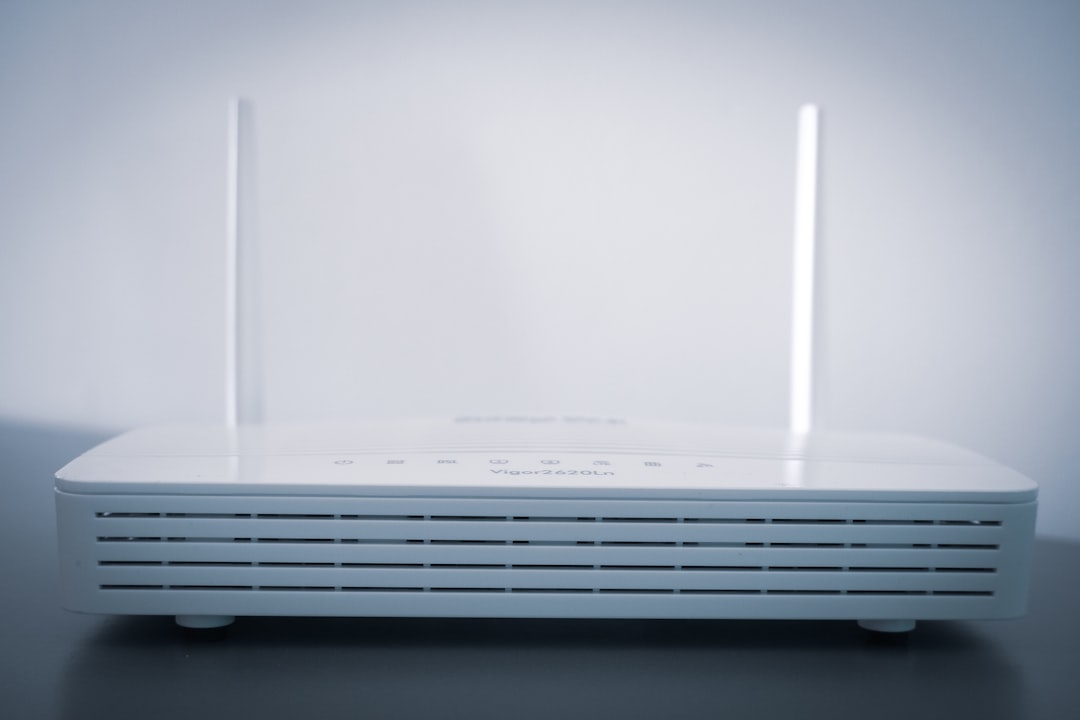
If placement and band changes aren’t enough, you need a second access point. There are three ways to do it, and they are not equally good.
Wired access point or mesh with Ethernet backhaul — best
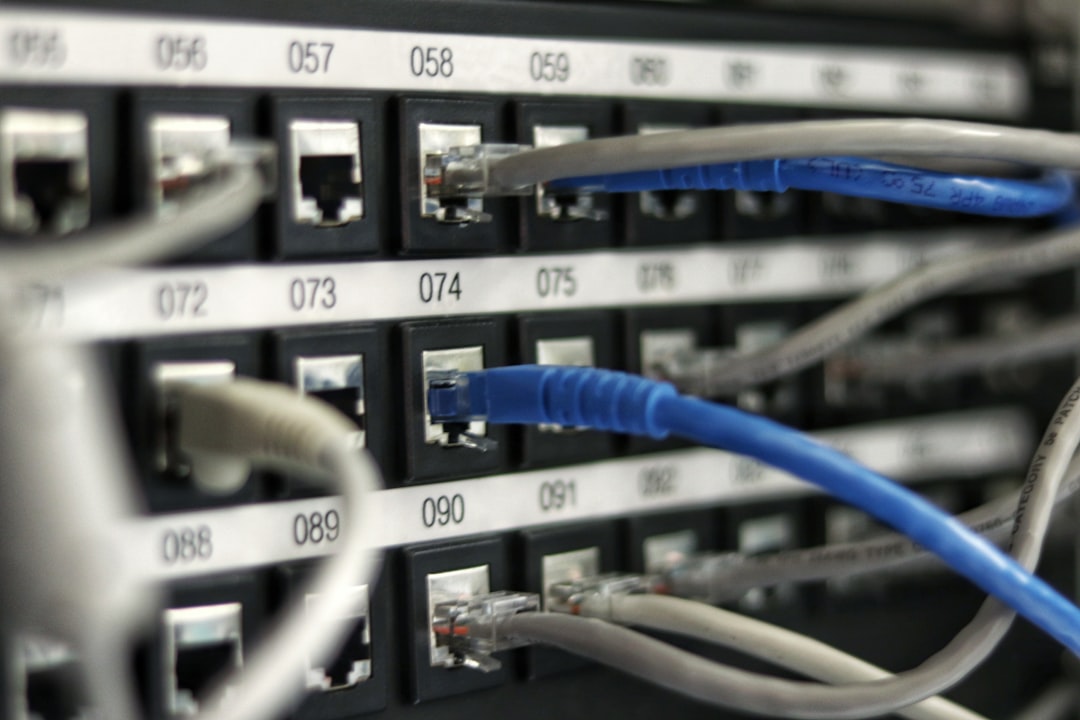
Run an Ethernet cable from the router to a second unit in the back of the apartment. The second unit gets full-speed internet over the wire and only has to cover its own end. No signal loss, no halving of bandwidth. This is what we install when we can, and in most apartments the cable can be run along baseboards or through an existing conduit without opening walls.
Wireless mesh — good
A two- or three-node mesh system where the nodes talk to each other over the air. Much better than a cheap extender because the nodes coordinate and hand your devices off intelligently. The catch: each node must be able to hear the last one clearly, so node placement matters enormously. Put the second node roughly halfway to the dead spot, not in the dead spot itself — a node that can barely hear the router just rebroadcasts a bad signal.
A cheap plug-in “range extender” — usually a mistake
Single-radio extenders receive and retransmit on the same radio, which cuts your throughput roughly in half, and they typically create a second network name you have to switch between manually. They’re sold as the easy answer and they generate a lot of follow-up calls.
MoCA — the overlooked option
If your apartment has coax running to multiple rooms (common in buildings wired for cable TV), MoCA adapters turn that existing coax into a fast wired backhaul. You get the benefits of a wired access point without running new cable. In older buildings with good coax, this is often the cleanest solution available.
Step 5: Handle the building-wide problems
Some issues aren’t inside your apartment. If your speeds collapse every evening and your neighbors say the same, that’s a shared-node congestion issue and it’s a conversation with your provider, not a hardware purchase. If you’re in a co-op or condo with building-provided internet, the equipment in your unit may be under the building’s control entirely, and the super or managing agent is the right first call.
A realistic plan
For a typical one- or two-bedroom Upper West Side apartment with one bad room:
- Run the two speed tests. Ten minutes, free.
- Move the router toward the center, up off the floor. Free.
- Split the bands and change the 2.4 GHz channel. Free.
- If it’s still bad: a two-node mesh, ideally with a wired or MoCA backhaul. Typically $150–$300 in hardware.
Most people can work through the first three steps themselves in an afternoon. Step four is where it tends to get fiddly — deciding where the second node goes, whether coax backhaul is viable, and getting the handoff configured so your laptop actually switches access points when you walk between rooms.
When it’s worth calling someone
If you’ve moved the router, split the bands, and the back room is still unusable — or if you’d rather not spend a Saturday on it — that’s what we do. Tech Support NYC handles Wi-Fi troubleshooting throughout the Upper West Side and Manhattan: we survey the apartment, find where the signal actually dies, and install the right fix rather than the most expensive one. Often that means moving your existing equipment and charging you for an hour rather than selling you a new system.
You can reach us here to set up a visit.
On-site and remote tech support for homes and small businesses across the Upper West Side and Manhattan.
Book a consultation (844) 915-4004
We value your opinion. If we have helped you, a quick review means a lot — leave one on Google. Thank you.