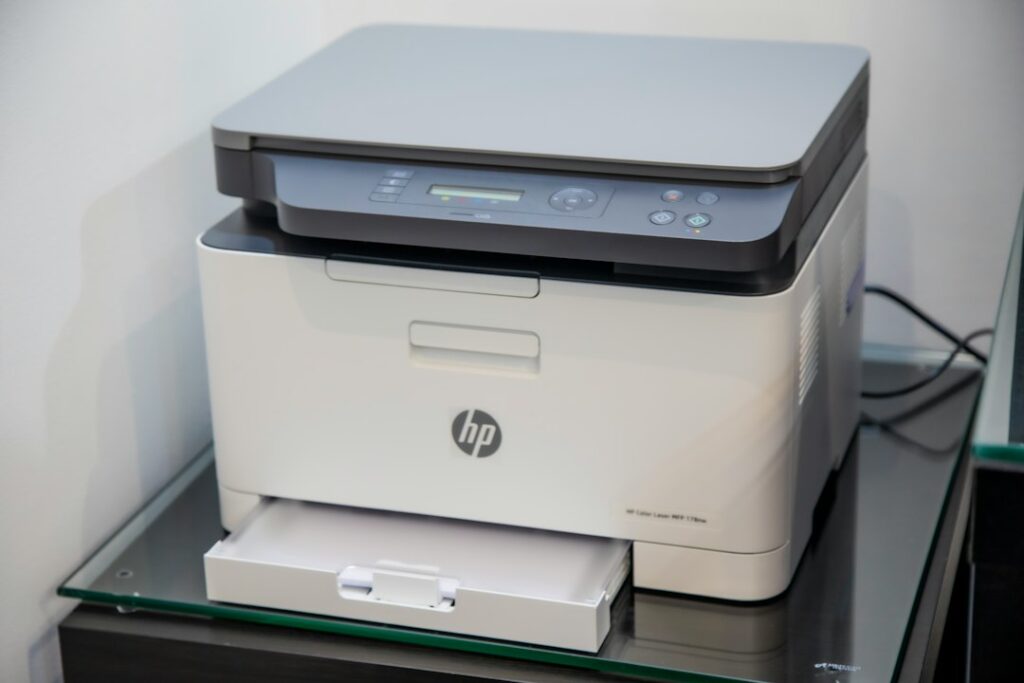
It’s one of the most maddening tech problems precisely because it makes no sense on the surface: the printer sits right there, it’s on, it’s connected to the same Wi-Fi — and one laptop prints to it just fine while the other says it can’t find it, or the job just vanishes into nothing. If the printer itself were broken, neither computer would work. Since one does, the printer is fine. The problem is almost always in how that specific laptop is trying to reach it.
Start by identifying which kind of “doesn’t work” you have
- The printer doesn’t show up at all when you go to add it or print — this points to a network/discovery problem.
- It shows up, you send the job, and nothing happens — this points to a driver or queue problem.
- It prints, but garbled or in the wrong format — almost always the wrong driver installed.
Which one you have determines where to look first, so before trying fixes, actually check which bucket you’re in.
The most common cause: the two laptops are on different networks
This catches more people than anything else on this list. Many home Wi-Fi setups — especially mesh systems, dual-band routers with a separate “guest” network, or ISP-provided routers with a 2.4 GHz and 5 GHz network under different names — can put two devices on what are effectively two separate networks even though both say they’re “connected to Wi-Fi.” Most home printers only broadcast themselves for discovery on one of those networks. If one laptop happens to be on the guest network, or on a different band than the printer, it simply can’t see it.
Check: on both laptops, look at the exact Wi-Fi network name you’re connected to (not just “connected,” the actual name). If they’re different, connect the problem laptop to the same network name the working laptop is using.
The second most common cause: no driver, or the wrong one
Modern printers mostly work through AirPrint (Mac/iOS) or built-in driver detection (Windows), so this is less common than it used to be, but it still happens — especially on Windows machines that were set up at different times, or on a laptop that’s never printed to anything before. Windows sometimes installs a generic driver that “sees” the printer but can’t actually communicate with its specific features, which shows up as jobs that vanish silently.
- Windows: Settings → Bluetooth & devices → Printers & scanners. Remove the printer entirely, then add it again and let Windows search fresh rather than relying on an old cached entry.
- Mac: System Settings → Printers & Scanners. Same idea — remove it with the minus button, then add it back with the plus button and let it detect fresh via AirPrint or Bonjour.
Third: a stuck print queue on just that machine
Each computer keeps its own local print queue. If a job got stuck on the problem laptop days or weeks ago, every new job can pile up behind it and never actually reach the printer, even though the laptop thinks everything is fine.
- Windows: Settings → Printers & scanners → select the printer → Open print queue, and cancel anything stuck there. If cancel doesn’t work, restart the laptop — that clears a jammed print spooler almost every time.
- Mac: open the printer in System Settings, click “Open Print Queue,” and clear anything listed.
Fourth: firewall or VPN software blocking discovery
If the problem laptop has security software, a VPN client, or a corporate management tool installed (common on work laptops) that the working laptop doesn’t have, that software can be quietly blocking the local network traffic printers use to announce themselves. If this is a work laptop and the other is personal, this is worth suspecting early — try turning off the VPN temporarily and see if the printer appears.
A sensible order to try things
- Confirm both laptops are on the exact same Wi-Fi network name.
- Remove and re-add the printer fresh on the problem laptop.
- Clear the local print queue and restart the laptop.
- If it’s a work laptop, temporarily disable VPN/security software to test.
- Still stuck? Check for a manufacturer driver update rather than relying on the generic one.
When it’s worth calling someone
Home and small-office printer setups get messier the more devices are involved — a wireless printer, a couple of laptops, maybe a shared network drive, all with slightly different histories. If you’ve worked through the list above and it’s still only printing from one machine, that’s a quick fix for us rather than another hour of guessing. It’s the same work covered under our printer setup and troubleshooting service across the Upper West Side and Manhattan.
On-site and remote tech support for homes and small businesses across the Upper West Side and Manhattan.
Book a consultation (844) 915-4004
We value your opinion. If we have helped you, a quick review means a lot — leave one on Google. Thank you.