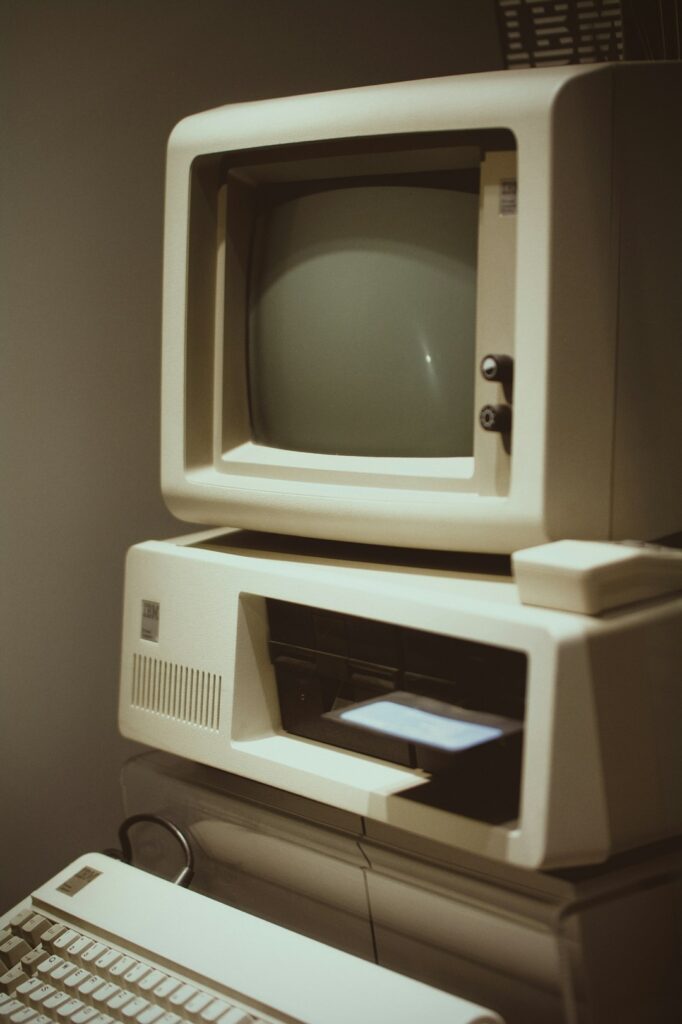
“Too old to upgrade” actually means two different things, and mixing them up is how people either replace a perfectly good computer too early or keep struggling with one that’s genuinely done.
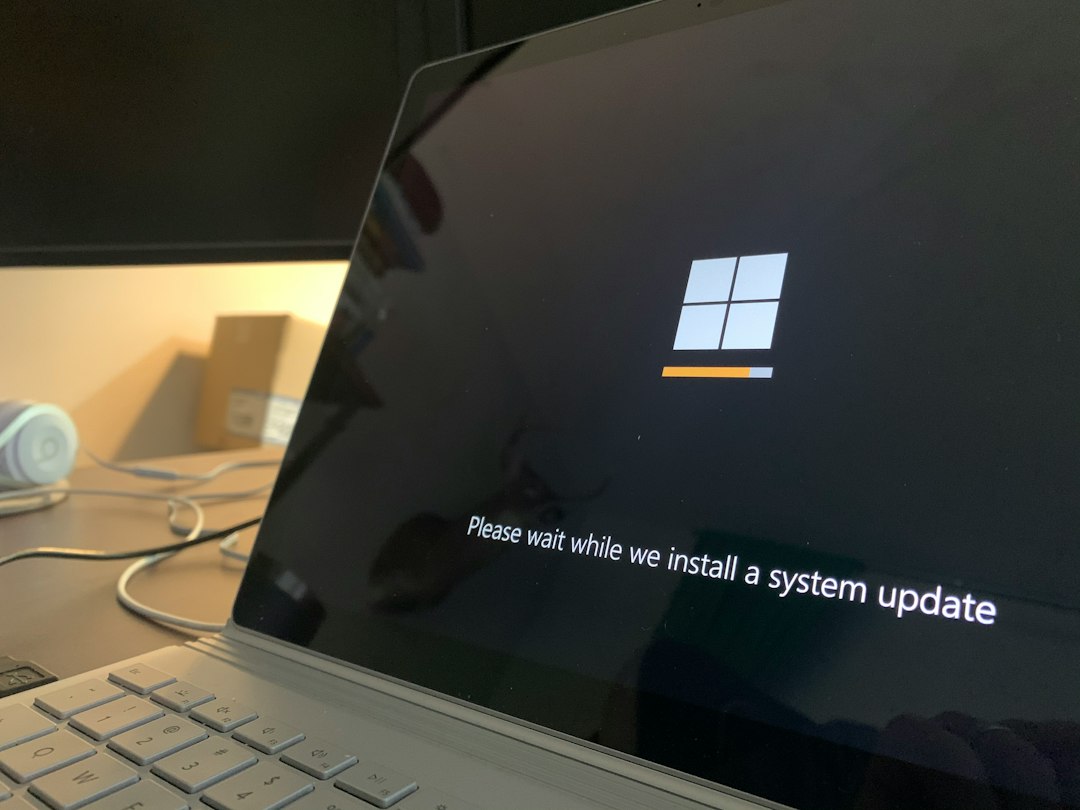
Question 1: Can it run the current OS at all?
Windows 11 has specific hardware requirements — notably a security chip called TPM 2.0 and a processor from roughly the last 5–7 years. Check: Settings → System → About for your processor, and search your exact model plus “Windows 11 compatible” to confirm. If it genuinely can’t run Windows 11, that’s a hard limit, not a performance opinion.
Question 2: Can it run it acceptably?
This is different from “can it run it at all.” A machine can technically meet the minimum requirements and still feel sluggish for how you actually use it. The two components that matter most for everyday feel are RAM and drive type:
- 8 GB of RAM is a reasonable minimum for general use today; 4 GB will feel strained with modern browsers and apps.
- An SSD versus a spinning hard drive makes a bigger difference to how “fast” a computer feels than almost any other single factor. A machine with a hard drive and 8 GB of RAM often feels slower than a much older machine with an SSD.
If your machine has a hard drive and you’re not sure, this is worth checking before writing off the computer — in many cases, replacing a hard drive with an SSD is a same-day fix that makes an “old, slow” computer feel new again, for a fraction of the cost of replacing it.
Question 3: What do you actually do with it?
Browsing, email, video calls and document work don’t need much. Video editing, large Lightroom catalogs, or running several demanding programs at once do. Be honest about which category you’re in — a lot of “I need a new computer” turns out to be “I need more RAM” or “I need an SSD,” both far cheaper than replacement.
A reasonable decision framework
| Situation | What I’d do |
|---|---|
| Can’t run current OS, hardware is genuinely old (7+ years) | Time to replace |
| Can run current OS but has a hard drive, not SSD | SSD upgrade first — often solves the “slow” complaint entirely |
| Has an SSD but under 8 GB RAM | RAM upgrade if the machine supports it (many laptops don’t allow this — worth checking before assuming) |
| Meets requirements, has SSD and enough RAM, still feels slow | Worth a diagnostic — could be software, not hardware |
When it’s worth calling someone
Figuring out whether a specific machine is worth upgrading or worth replacing — and whether an upgrade is even physically possible on that model — is exactly the kind of question we can answer honestly in a few minutes, without an incentive to sell you something you don’t need. Part of our computer support across the Upper West Side and Manhattan.
On-site and remote tech support for homes and small businesses across the Upper West Side and Manhattan.
Book a consultation (844) 915-4004
We value your opinion. If we have helped you, a quick review means a lot — leave one on Google. Thank you.