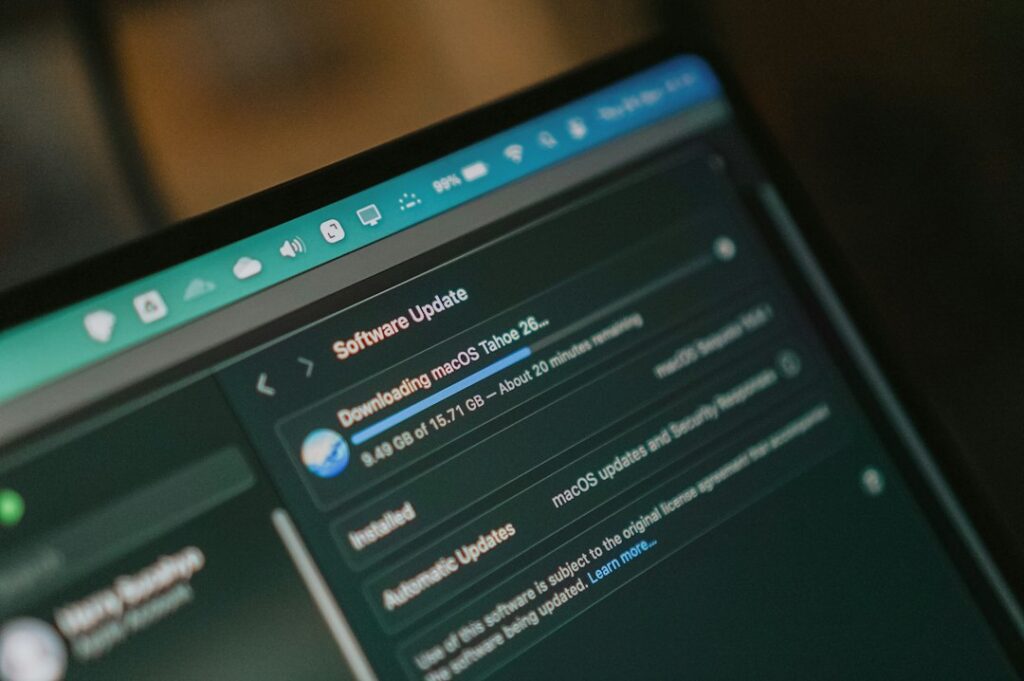
The download finishes, or seems to, and then the install just stalls — or it fails partway with a vague message, or the progress bar sits at the same point for an hour. Most of the time this isn’t a sign of anything seriously wrong with the Mac; it’s one of a handful of predictable blockers.
1. Not enough free storage
A macOS installer needs significant free space — often 20–40 GB depending on the version — to stage the update before it actually installs. If storage is tight, the installer can fail with a message that doesn’t clearly say “you’re out of space.” Check Apple menu → About This Mac → Storage first, before anything else on this list.
2. An unstable internet connection during download
macOS updates download in the background and are large enough that a flaky connection can corrupt the download without any obvious error at the time. If the update seems to download fine but then fails to install, or the installer immediately complains the file is damaged, redownloading on a stable connection (ideally wired or strong Wi-Fi, not a weak signal in the back of the apartment) usually fixes it.
3. The date and time are wrong
This one catches people off guard: macOS verifies security certificates during installation, and if the system clock is significantly off, that verification can fail and block the install. Check System Settings → General → Date & Time, and confirm “Set date and time automatically” is on.
4. A peripheral or external drive interfering
An external drive, especially one with a bootable backup or disk utility software on it, can occasionally interfere with the installer. Disconnecting non-essential external drives and peripherals before installing — keeping only what’s necessary — removes a surprisingly common source of installer failures.
5. A genuinely low battery or unreliable power
Major macOS installs won’t proceed, or will pause, below a certain battery threshold on a laptop, specifically to avoid the machine dying mid-install and corrupting the system. Plug in and confirm it’s actually charging (see our note on diagnosing charging issues if you’re not sure) before trying the update again.
A sensible order to try things
- Confirm free storage — clear space if it’s under 40 GB.
- Check Date & Time is set to automatic.
- Disconnect non-essential external drives.
- Plug in and confirm the Mac is actually charging.
- Redownload the update fresh on a stable connection rather than resuming a stuck one.
When it’s worth calling someone
If the installer keeps failing after working through this list, or it fails partway through in a way that leaves the Mac behaving strangely, that’s worth a proper diagnosis rather than repeated attempts — a failed install partway through is one of the few situations where trying again blindly can make things worse. It’s part of the Mac help we provide across the Upper West Side and Manhattan.
On-site and remote tech support for homes and small businesses across the Upper West Side and Manhattan.
Book a consultation (844) 915-4004
We value your opinion. If we have helped you, a quick review means a lot — leave one on Google. Thank you.