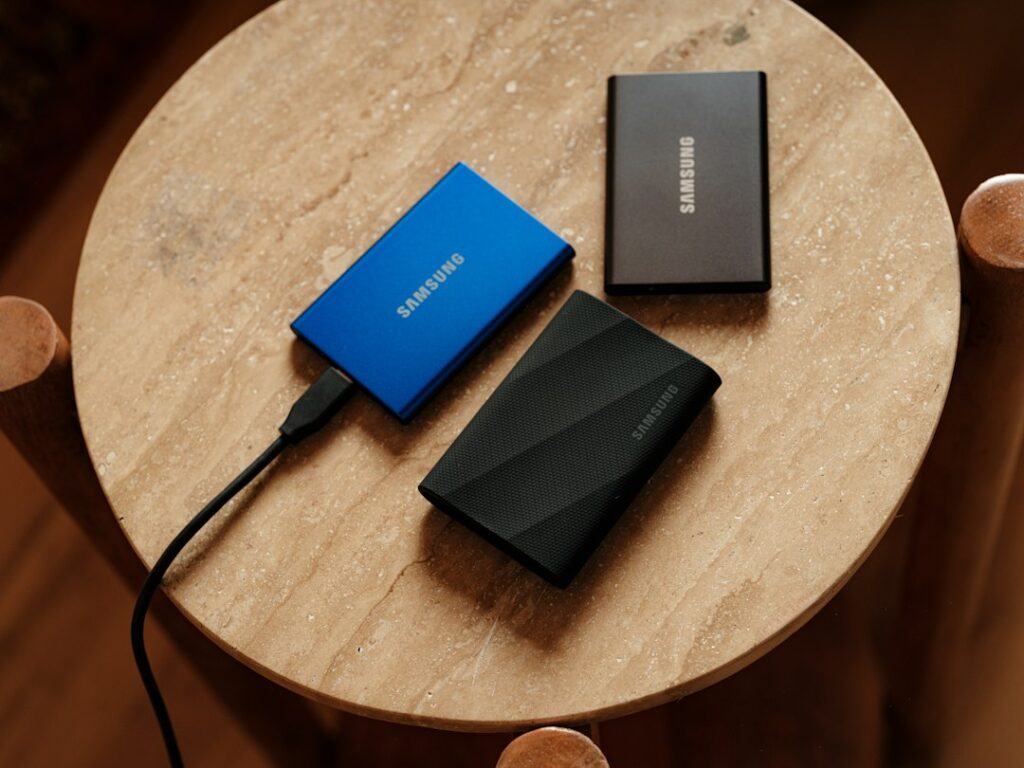
“I have a backup” usually means one copy of your files on one external drive that hasn’t been checked in a year. That’s better than nothing, but it’s not a real backup strategy. Here’s what actually protects you, based on how backups really fail.
The 3-2-1 rule, in plain terms
Keep 3 copies of anything important (the original plus two backups), on 2 different types of storage media (for example, an internal drive plus an external drive — not two partitions on the same physical disk), with 1 copy stored somewhere physically separate (cloud storage, or a drive kept at a different location). This single rule covers the three most common ways people actually lose data: drive failure, theft or fire, and accidental deletion or ransomware.
Strategy 1: Local external drive backup
On a Mac, Time Machine (built in, free) automatically backs up to an external drive on a rolling schedule and lets you restore individual files or the whole system. On Windows, File History or a dedicated tool like Macrium Reflect does the same job. This protects you from drive failure and accidental deletion, but not from theft, fire, or flooding, since the backup lives in the same building as the computer.
Strategy 2: Cloud backup
Services like Backblaze, iCloud, or OneDrive back up continuously to a remote data center, protecting you even if your apartment or office is destroyed. The tradeoff is restore speed — pulling terabytes of photos back down over the internet after a total loss can take days, and some services charge for large restores. Cloud backup is best paired with a local backup, not used as your only one.
Strategy 3: A second, disconnected copy for ransomware protection
Ransomware encrypts files it can reach — including a backup drive that’s permanently plugged in and mounted. Keep at least one backup on a drive that’s normally disconnected, or use a cloud service with versioning (the ability to restore an earlier version of a file, not just the latest, possibly-encrypted one). This is the difference between “I have a backup” and “I have a backup that survives an attack on my main computer.”
What people get wrong
A synced folder (Dropbox, Google Drive, OneDrive set to sync) is not a backup by itself — if you delete or overwrite a file, that change syncs everywhere, including to the “backup.” Cloud sync services do have version history, but it’s usually limited to a certain number of days, so it isn’t a substitute for a real backup with longer retention. Also, a backup you’ve never tested restoring from is a backup you don’t actually know works — pick one file at random every few months and confirm you can get it back.
A realistic setup for most people
Time Machine or File History running automatically to a local external drive, plus a cloud backup service running in the background, covers the large majority of real-world data loss scenarios without requiring daily attention. Set both up once, confirm they’re actually running a few days later, and you’re covered for drive failure, theft, fire, and most accidental deletion.
Test it, or it isn’t real
A backup you have never restored from is a hypothesis. Failed backups are silent by design — the drive fills, the cable loosens, Time Machine quietly errors out, and you learn about it at the exact moment you need the file. Twice a year, restore one random file and confirm it opens. That is the whole test, and it is the difference between having a backup and believing you have one.
Check the date too. Open Time Machine or File History and confirm the last successful backup was recent. “Last backup: 14 months ago” is one of the more common things we find on a first visit.
3-2-1, in plain terms
- Three copies of anything you cannot lose.
- Two different kinds of storage — for example a local external drive plus a cloud service.
- One of them somewhere else — offsite, so a fire, flood, or burst pipe does not take both copies. In an apartment building, that last one matters more than people think.
Two cases worth special care
- Photographers. Your Lightroom catalog holds every edit you have ever made — the image files alone do not. Back up both. See our guide to Lightroom photos that go missing or stop syncing.
- Anyone facing ransomware. A good offsite backup turns an incident into an afternoon of inconvenience. Pair it with knowing how to spot a phishing email, since that is usually the entry point.
We set backups up properly for homes and small businesses on the Upper West Side, including the part most people skip: verifying they still run six months later.
On-site and remote tech support for homes and small businesses across the Upper West Side and Manhattan.
Book a consultation (844) 915-4004
We value your opinion. If we have helped you, a quick review means a lot — leave one on Google. Thank you.