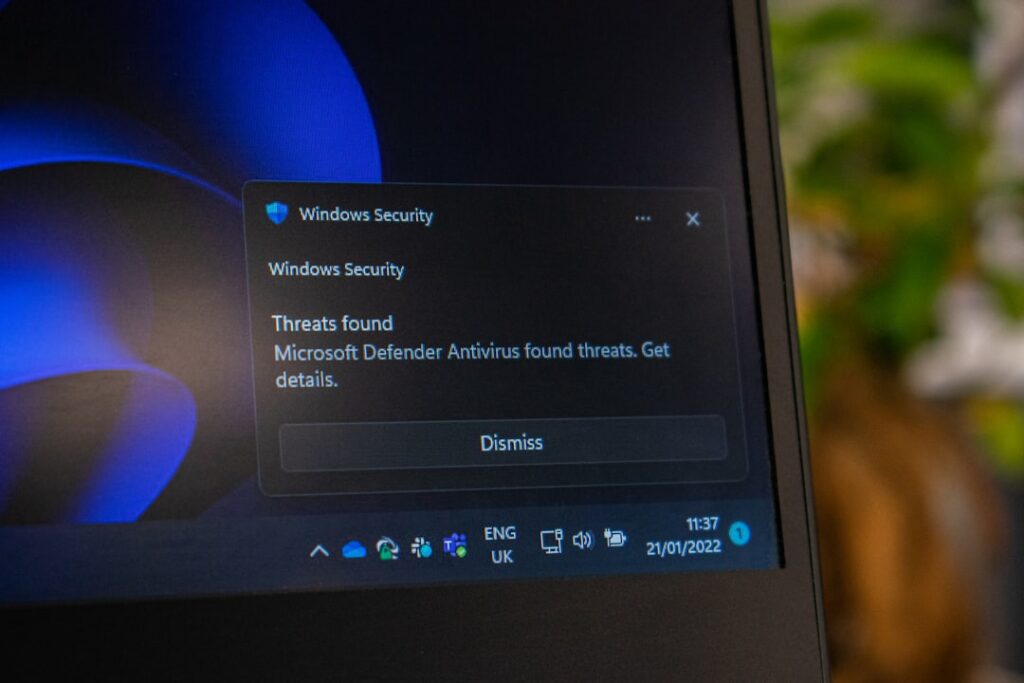
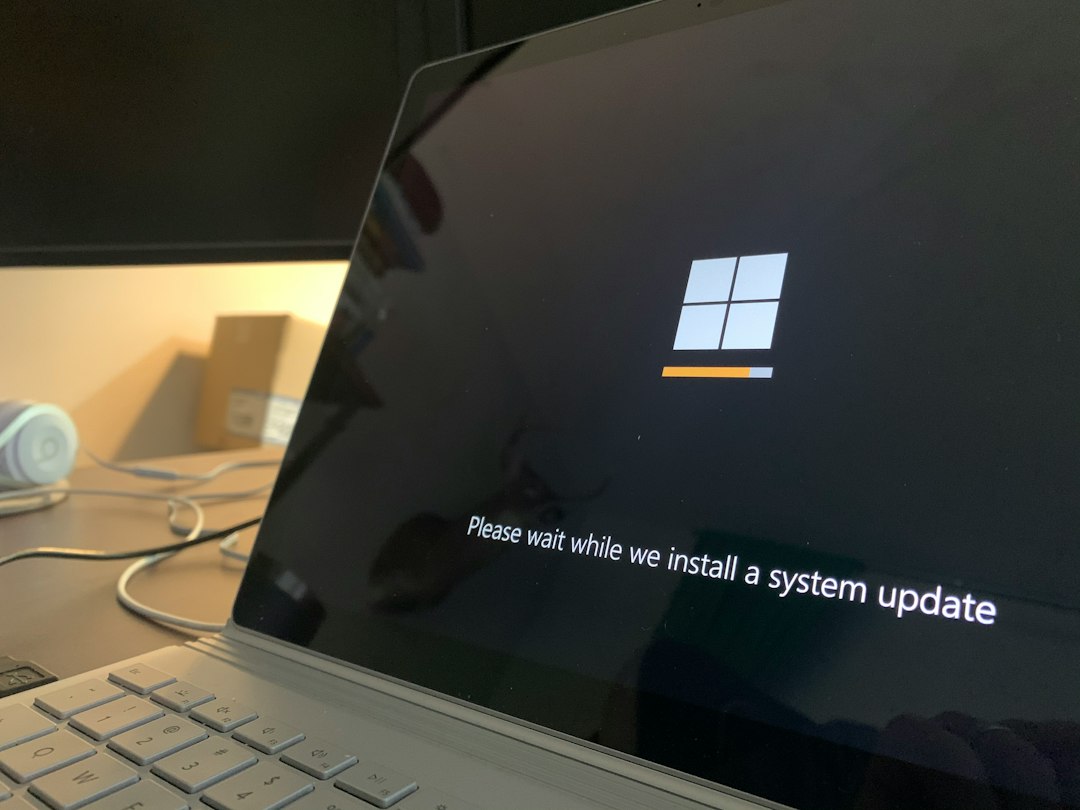
Windows Update sits there stuck, or fails partway through, or offers an update that just never seems to finish installing. Before assuming something is seriously wrong with the machine, work through these five causes in order — they cover the large majority of stuck Windows 11 updates.
1. Not enough free disk space
Windows needs several gigabytes of free space to download and stage a major update, and it often fails silently or with a vague error rather than clearly saying “you’re out of room.” Check: Settings → System → Storage, and confirm you have at least 15–20 GB free before trying again. If you’re tight on space, the Storage settings page also shows what’s using it and offers a one-click cleanup for temporary files.
2. A stuck update cache
Windows Update keeps a local cache of downloaded update files, and that cache occasionally gets corrupted — especially after an update that failed partway through. When this happens, Windows keeps trying to resume a broken download instead of starting fresh. The built-in Windows Update Troubleshooter (Settings → System → Troubleshoot → Other troubleshooters → Windows Update) fixes this in most cases by clearing the stuck cache and letting Windows redownload cleanly.
3. A driver or piece of software Windows won’t update around
Microsoft sometimes deliberately blocks an update from installing on a specific machine because it detected a driver or app known to cause problems with that update — usually a graphics driver, but sometimes security software or a hardware utility. This shows up as an update that offers itself, starts, and then reverses with no clear explanation. Checking Settings → Windows Update → Update history for a specific error code is the fastest way to confirm this is what’s happening; the code can be looked up against Microsoft’s known-issues list for that specific update.
4. The update service itself needs a restart
The background service that manages updates can get into a bad state without any obvious symptom other than updates silently not progressing. Restarting the machine fully (not just closing the lid) resolves this more often than people expect — it’s worth doing before more complicated troubleshooting, not after.
5. Hardware that doesn’t meet the requirements for a specific update
Occasionally the machine itself is the limit — older hardware, particularly around TPM version or processor generation, can block specific feature updates even though the machine otherwise runs Windows 11 fine. This is less common for routine monthly updates and more common for the larger annual feature updates. If this is the cause, forcing the update isn’t advisable; it’s worth confirming what’s actually required before working around it.
A sensible order to try things
- Check and clear disk space if it’s under 20 GB free.
- Run the built-in Windows Update Troubleshooter.
- Restart the machine fully.
- Look up the specific error code from Update history if one is shown.
- If it’s an older machine and a major feature update specifically, confirm hardware requirements before forcing anything.
When it’s worth calling someone
An update that’s genuinely stuck — not just slow, but stuck for hours or repeatedly failing with the same error — can sometimes point to a deeper disk or driver issue that’s worth a proper look before you keep retrying the same thing. That’s part of the Windows help we provide across the Upper West Side and Manhattan.
On-site and remote tech support for homes and small businesses across the Upper West Side and Manhattan.
Book a consultation (844) 915-4004
We value your opinion. If we have helped you, a quick review means a lot — leave one on Google. Thank you.