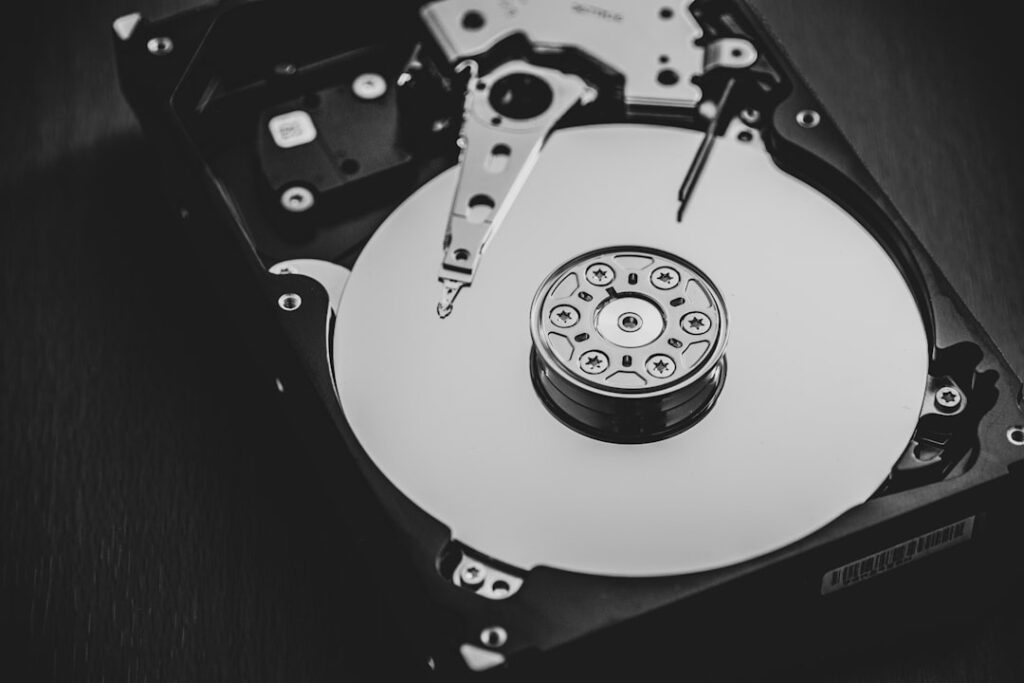
Windows tells you the drive is nearly full, but the panic response — deleting random files and hoping for the best — is how people lose things they actually needed. There’s a safer path that recovers real space first.
Start with Storage Sense
Settings → System → Storage shows exactly what’s using space, by category, instead of leaving you guessing. Turn on Storage Sense here too — it automatically clears temporary files and old items from the Recycle Bin on a schedule, which prevents the buildup from happening again.
The safe wins, in order
- Temporary files. Settings → System → Storage → Temporary files. These are safe to delete by design — Windows and apps recreate what they actually need.
- Downloads folder. Sort by size in File Explorer. Old installers and forgotten attachments routinely account for 10+ GB nobody remembers downloading.
- Old Windows installation files (Windows.old). After a major update, Windows keeps a backup of the previous version for about 10 days in case you need to roll back. Once you’re sure everything’s working, this folder (shown in Disk Cleanup) can be several gigabytes.
- Hibernation file, if you never use hibernate. This reserves space equal to your RAM. If you always shut down or sleep rather than hibernate, it can be disabled via Command Prompt (
powercfg /hibernate off) — worth doing only if you’re sure you don’t use it. - OneDrive “Files On-Demand.” If OneDrive is set to keep everything downloaded locally, switching to Files On-Demand keeps files available in the cloud and only downloads them when you open them — a large win if you have years of synced files.
What not to touch
Skip anything in the Windows or Program Files folders unless a specific tool tells you to remove it — that’s the operating system and installed programs, not clutter. Skip System Restore points too, unless you understand you’re giving up the ability to roll back a bad update.
When it’s worth calling someone
If you’ve cleared the safe stuff and you’re still tight on space, that usually means the drive itself is genuinely too small for how you use the computer — worth a real conversation about an upgrade rather than more digital housekeeping. Part of our Windows help across the Upper West Side and Manhattan.
On-site and remote tech support for homes and small businesses across the Upper West Side and Manhattan.
Book a consultation (844) 915-4004
We value your opinion. If we have helped you, a quick review means a lot — leave one on Google. Thank you.