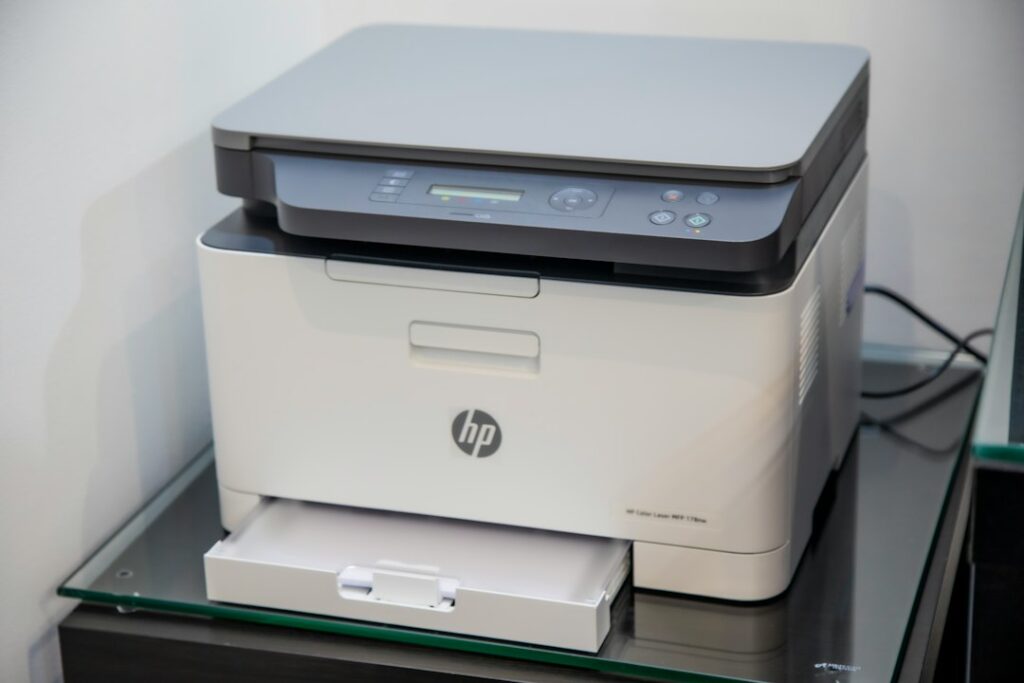
The printer is plugged in. The screen is lit. It printed fine yesterday. And Windows or macOS insists it’s “Offline.”
This is one of the most misleading error messages in consumer computing, because “offline” almost never means the printer is off. It means your computer tried to reach the printer, didn’t get an answer it liked, and gave up — and then stopped trying. Here’s how to work through it in order, from the fixes that take ten seconds to the ones that actually solve it permanently.
What “offline” actually means
Your computer keeps a saved profile of your printer, including the address where it expects to find it. When a print job fails, the operating system flags the printer as offline and quietly queues everything behind it. Critically, it often does not automatically re-check — so even after the underlying problem resolves, the printer can stay stuck in the offline state until something forces a fresh look.
That’s why the classic “turn it off and on again” works so often here. It’s not magic; it’s forcing a re-check.
The 60-second fixes, in order
1. Power-cycle the printer properly
Not the power button — pull the plug from the wall. Wait 30 seconds, then plug it back in and let it fully boot. The wait matters: it lets capacitors drain and clears the network stack in the printer’s own firmware. A button press often just sleeps it.
2. Clear the print queue
One stuck job can block everything behind it and hold the printer in an error state.
- Windows: Settings → Bluetooth & devices → Printers & scanners → your printer → Open print queue → cancel everything.
- Mac: System Settings → Printers & Scanners → your printer → Open Print Queue → delete all jobs.
3. Uncheck “Use Printer Offline” (Windows only)
Windows has a manual offline toggle that gets flipped by a failed job and then stays flipped. In the print queue window, open the Printer menu and make sure Use Printer Offline is unchecked. This single checkbox is the answer more often than it has any right to be.
4. Make sure you’re printing to the right printer
Windows and macOS both create duplicate entries — “HP OfficeJet,” “HP OfficeJet (Copy 1),” “HP OfficeJet (Network).” Only one of them is real. If you have duplicates, the offline one is probably a stale entry and you’re defaulting to it. Delete the duplicates.

If it’s still offline: the real cause is usually the IP address
Here is the problem behind most repeat offenders, and almost nobody explains it.
Your router hands out IP addresses by lease — your printer is assigned something like 192.168.1.42 for a set period. Your computer saves that address. When the lease expires, or after a power outage, or when you restart the router, the printer may come back as 192.168.1.57 instead. Your computer is still knocking at .42, gets no answer, and reports “offline.”
This is why it works, breaks, works again, and breaks after every power blip.
Confirm it
Print a network configuration page from the printer’s own control panel (usually under Settings → Network, or Reports). It will show the printer’s current IP address. Compare that to what your computer thinks it is — on Windows, in printer Properties → Ports; on Mac, in the printer’s queue settings. If they don’t match, that’s your answer.
Fix it permanently: reserve the address
Two ways, both durable:
- DHCP reservation on the router (best). Log into your router, find the DHCP or LAN settings, and reserve the printer’s current IP to its MAC address. The router will now always hand that same address to that printer. Nothing on your computer needs to change ever again.
- Static IP on the printer. Set the address in the printer’s own network menu. Works, but pick an address outside your router’s DHCP pool or you risk two devices claiming the same address.
Once the address is pinned, remove the printer from your computer and add it fresh. This is the difference between fixing it today and fixing it for good.
Other common culprits
Wrong Wi-Fi network
If you’ve split your router into separate 2.4 GHz and 5 GHz network names, your laptop may be on the 5 GHz network while the printer is on 2.4 GHz. Many printers only support 2.4 GHz. Depending on your router’s settings, devices on different bands may not see each other. Check that both are on the same network.
Guest network isolation
If the printer got joined to a guest network, it’s deliberately walled off from your other devices. Rejoin it to the main network.
VPN
An active VPN routes your traffic elsewhere and can cut your laptop off from devices on your own local network. Disconnect it and try printing.
The print spooler has crashed (Windows)
The spooler is the background service that manages printing, and it hangs. Restart it: press Windows+R, type services.msc, find Print Spooler, right-click, Restart. If it hangs repeatedly, a corrupt job is stuck in the spool folder and needs to be cleared manually.
A driver update broke it
Windows Update sometimes swaps a working manufacturer driver for a generic one. If the trouble started right after an update, reinstalling the driver from the manufacturer’s site is usually the fix.
The order I’d actually work through
- Unplug the printer for 30 seconds. Plug it back in.
- Clear the print queue.
- Uncheck “Use Printer Offline” (Windows).
- Delete duplicate printer entries.
- Print a network config page; compare the IP to what your computer expects.
- If they differ, reserve the IP on the router, then remove and re-add the printer.
- Restart the print spooler (Windows).
- Reinstall the driver from the manufacturer.
Steps 1 through 4 handle most one-off cases. Steps 5 and 6 are what stop it from coming back next month.
When to stop and call someone
If you’ve reserved the IP and it still drops, you may be looking at a failing network card in the printer, a router that’s badly misconfigured, or — in an office — a print server or permissions problem that’s outside the scope of home troubleshooting. If the printer is shared across several computers and it’s offline on all of them, the issue is on the network side, not on any one machine.
Tech Support NYC handles printer setup and troubleshooting for homes and small offices across the Upper West Side and Manhattan — including the unglamorous part, reserving addresses and configuring the router so the printer stops falling off the network every few weeks. If you’d rather not spend an evening in your router’s admin panel, get in touch.
On-site and remote tech support for homes and small businesses across the Upper West Side and Manhattan.
Book a consultation (844) 915-4004
We value your opinion. If we have helped you, a quick review means a lot — leave one on Google. Thank you.